In this version the following items are new developed.
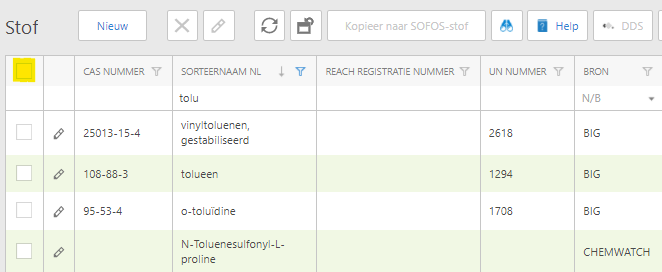
'Select all' check box is now also available in lists with many entries
In the top right-hand corner of most lists there is a checkbox to select all the entries in the overview at once. Some lists with a lot of data (such as the overview of substances or pots) did not have this checkbox because this functionality had an an impact on the speed of the overview when there was a large amount of data.
From this version on, this checkbox is available again in those overviews when the number of lines in the overview, e.g. as a result of a filter, is less than 100.
Authorization roles can be copied
In this version it is possible to copy authorization roles. When the logged in user has the right to create authorization roles then a button 'Copy role' will be visible above the authorization overview. This button is active at first. Only after selecting one or more roles can these roles be copied using this button. A role can only be copied when the logged in user has the right to edit the role to be copied. A copied role gets the name of the original role completed with '_copy'.
H- and P-phrases can now be linked more quickly to a SOFOS substance
Adding of H- and P-phrases to SOFOS substances has been made easier. In this version you can add multiple H- or P-phrases to a substance at once in specially designed screens.
The new screens can be accessed via the 'New' button above the overviews of the H- and P-phrases. After clicking on the button above the H-phrase overview, for example, you will see a screen where you can see all the H-phrases that have not yet been linked. You can use the search field to search for the text or number of the desired H-phrase. To add a phrase to the material, select it by checking the box at the beginning of the line. Via the 'Add' button, you can add the selected sentences to the material. After closing the screen the H-phrases will become visible next to the substance and will be linked to the substance by clicking on the 'Save' button above the substance.
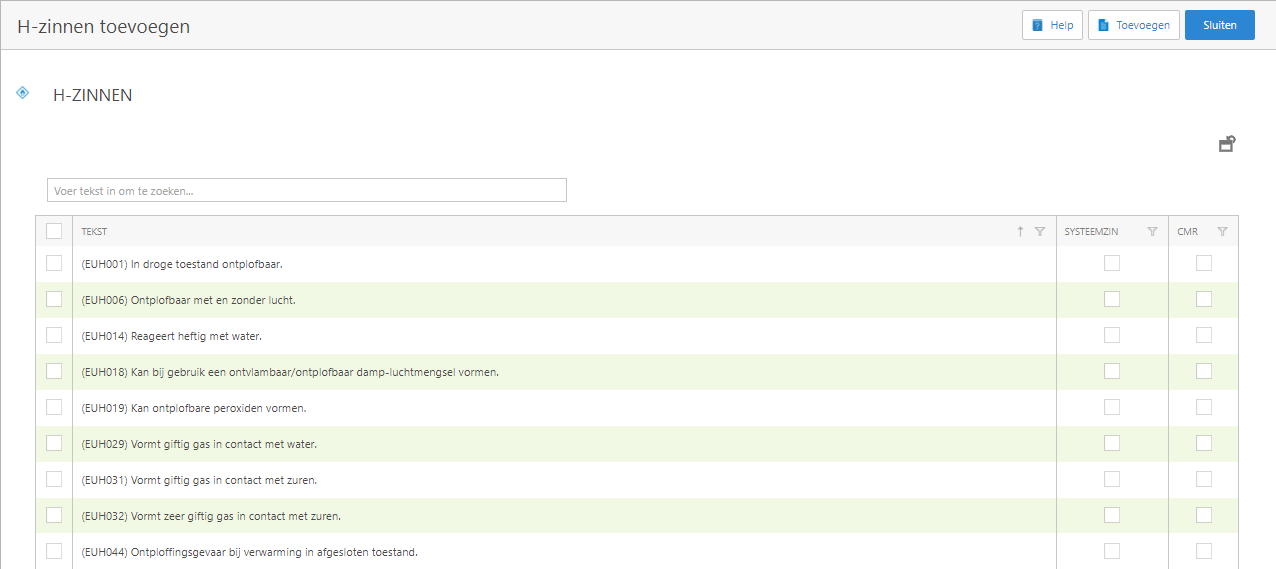
Adding P-phrases is done in an analogue.
Linking ARBO pictograms to a P-sentence
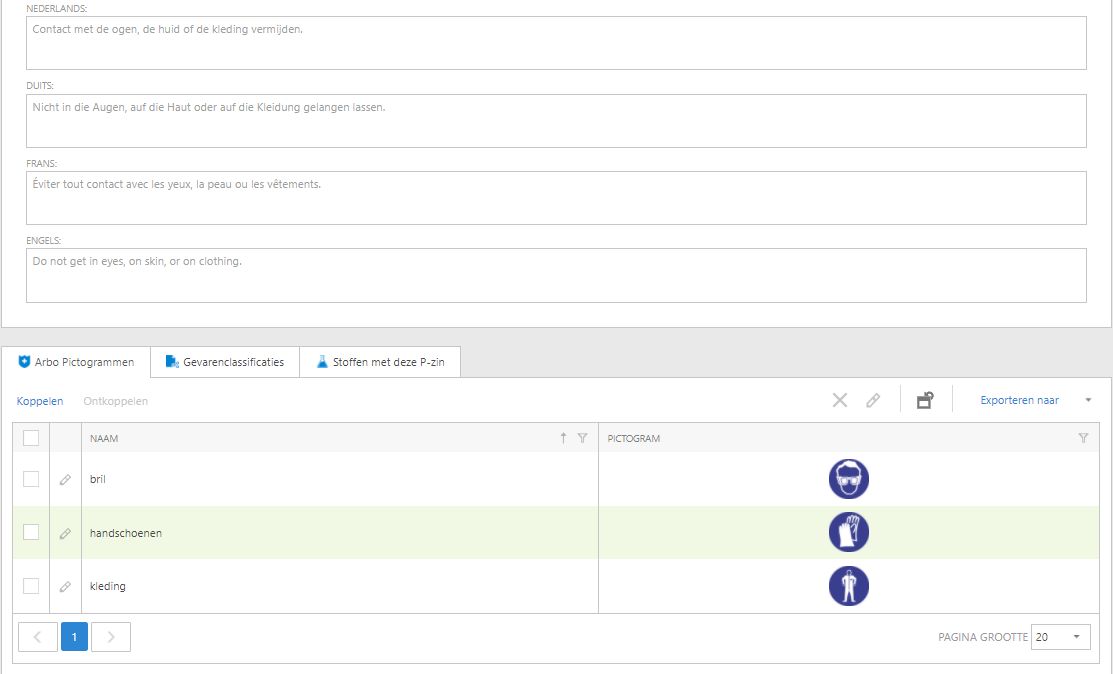
It is now also possible to link one or more ARBO-pictogrammes to a P-phrase. If the P-phrase is subsequently added to the SOFOS substance, the ARBO-pictograms are also linked to the substance. This also applies in the event that a classification is added that is linked to a P-phrase with linked ARBO-pictogrammen. In that case too, the pictograms will be linked automatically to the substance.
To link them, go to 'Settings-Substance- Texts'-Overview P-phrases'. In the overview you will see sentences that are marked as 'System sentences'. These are the sentences that are added to a SOFOS substance by default when you add a classification to which the P-phrase is linked. It is therefore convenient to associate pictograms primarily with the system sentence pictograms. You choose the P-phrase to which you want to link the pictograms. You can then link one or more pictograms via the 'ARBO Pictogrammen' tab.
Add or remove substances from the information portal more quickly
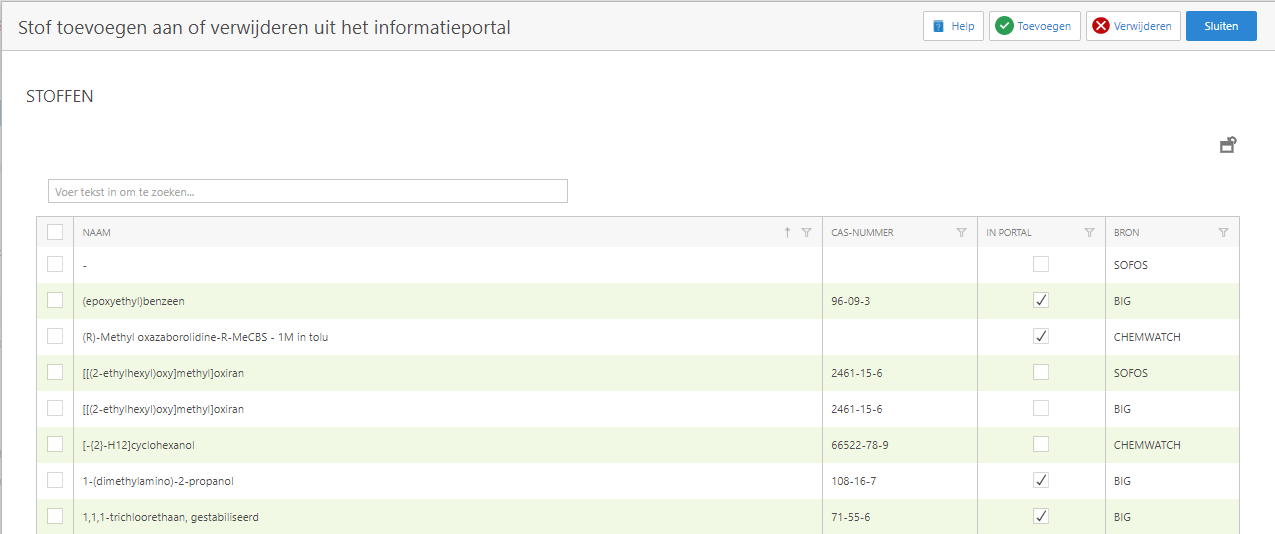
Using the button 'Add/Remove substances from information portal' above the substances overview you can easily add or remove several substances from the information portal. If there is not enough space on the screen to show the button, the button can also be located 'behind' the dots. The button is only active when the logged in user is entitled to change the check mark 'Information portal' in the substance.
After clicking on the button the screen below will be visible. In this screen you can search for substances and tick them. Using the buttons on the top right of the screen you can add or remove the selected substances from the information portal. The result is immediately visible in the information portal.
Easier linking of substances to a department and vice versa
In the substances screen it is possible to link departments to a substance. From now on, linking multiple departments has become much easier. When the substances screen has been started in edit mode (using the pencil), the new linking screen can be opened on the 'Linked to' tab via the 'New' button above the overview of departments.
In this screen you will see all the departments that have not yet been linked and you can search, filter and select departments. Optionally, you may have set a start and/or end date for the connection. Empty dates indicate that no start and end date have been set for the connection and that the connection will always be active. Using the 'Add' button, the selected departments are linked to the substance.
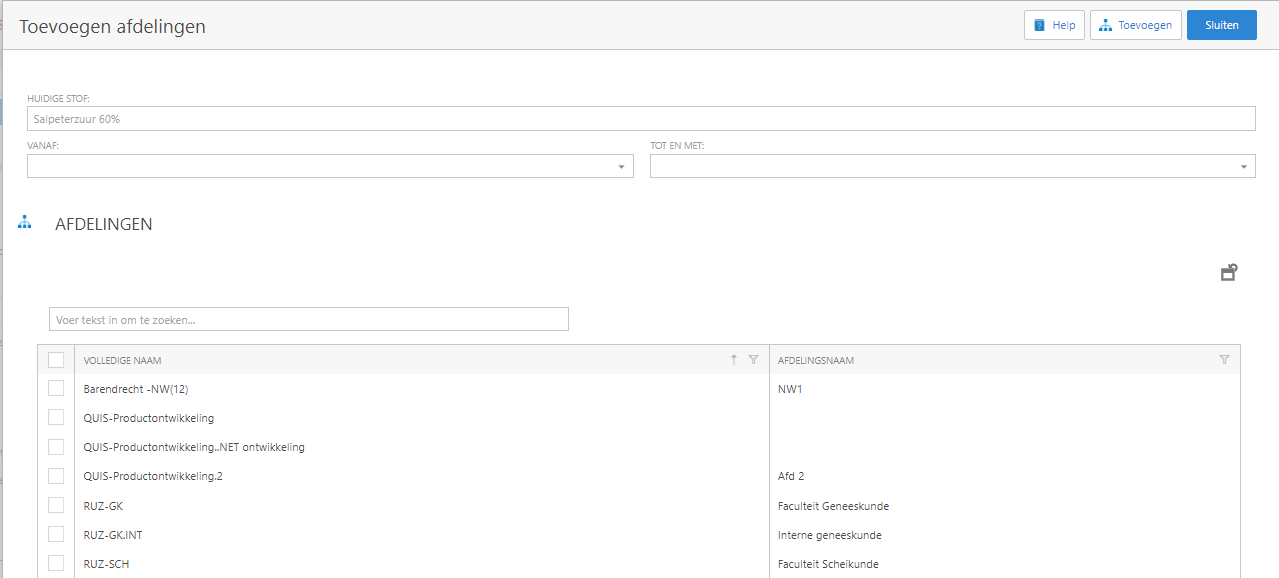
Analogous to linking departments to a substance, it is now also possible to link multiple substances to a department. This screen can be activated via the 'New' button on the department overview within the mutation screen of the 'Organization' (Organisation).
Easy to set maximum stock levels for a substance in multiple rooms
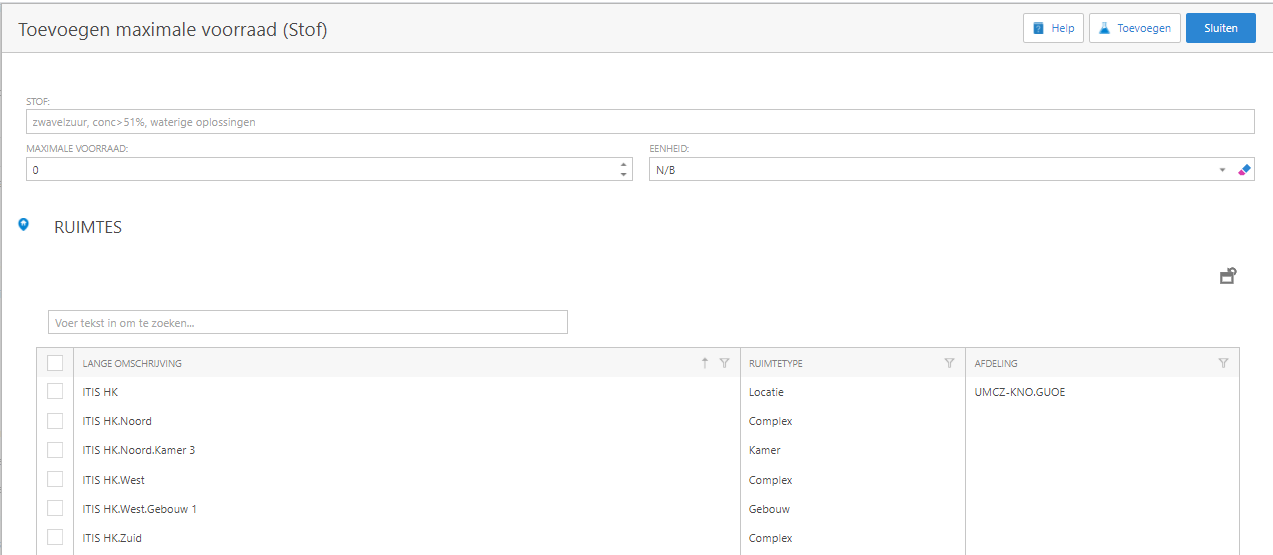
Within SOFOS, the maximum stock of a particular substance in a room can be defined. In the past this had to be done room by room. From this version you can now define the maximum stock of a certain substance at once for several rooms. Defining the maximum stock is done via the 'New' button above the 'Rooms' overview on the 'Linked to' tab in a substance.
You will then see a new screen where you must enter the requested maximum stock and where you can select one or more rooms. You can use the search field to filter the room list. You select a room by checking the box at the beginning of the line. By using the 'Add' button you add the maximum stock information to the selected rooms.
Difference list after updating substances from third-party database can now also be called up later
While updating the substances from the third-party database (BIG, AZH, DGZ and Chemwatch), the changes to the substance are recorded. After processing, these differences could be shown in a report. From this version, the differences in the substances that have been updated from this version can be reviewed later and possibly shown in a report.
The overview can be accessed via the menu item 'Go to - Database third parties - DBD-update differences list'. There you will find an overview of all substances which have ever been updated from this version onwards. You can use the search screen to search for a substance name, CAS number or specific change.
By clicking on a line you will get an overview of the changed fields of the selected substance. If necessary you can print a report with the changes for the selected material by clicking on the report icon in the upper right corner.
Bug fixes / Improvements
Miscellaneous
- Scrolling the screen with the mouse wheel when the cursor is in a value field (a field with the arrows) will no longer adjust the value of the field, but will scroll the screen. It is still possible to adjust the value of the field with the arrow keys.
- Using the 'Hide Name' field in the business unit screen, the business unit name can be hidden in the full name of a department associated with the business unit.
- After an action (e.g. release a pot), the selected pot is deselected again when returning to the pot view, so that another action can be performed on another pot immediately.
- The icon to create a report is always visible above a list and no longer disappears behind the dots.
- Rooms with only inactive pots can now also be set to inactive.
- Labels are now printed in the sorting order of the view from which the labels are printed.
- The column 'Localized article group' has been added to the article overview so that it can also be filtered on.
- The item screen can now also be set as the start screen. See User.
- The VOC-checkbox is filled when a BIG substance contains a text about the VOC content after retrieval.
- If a non-DBD substance is still linked to an area, article, department or person, the substance can no longer be removed.
- The link with Chemwatch has been further optimized.
- SOFOS connects to the latest version of the databases of BIG, DGZ and AZH (July 2021).
